Free PDF Stamp Library
By StampAPDF · Updated · How we write guides
This library has 8 free stamps for PDF documents. Each one is a transparent PNG in red, blue, and black. Pick a stamp below to get the downloads and the guide for that wording.
To put a stamp on a document, download the PNG and open the Stamp & Sign tool. Your PDF stays on your device.
All stamps
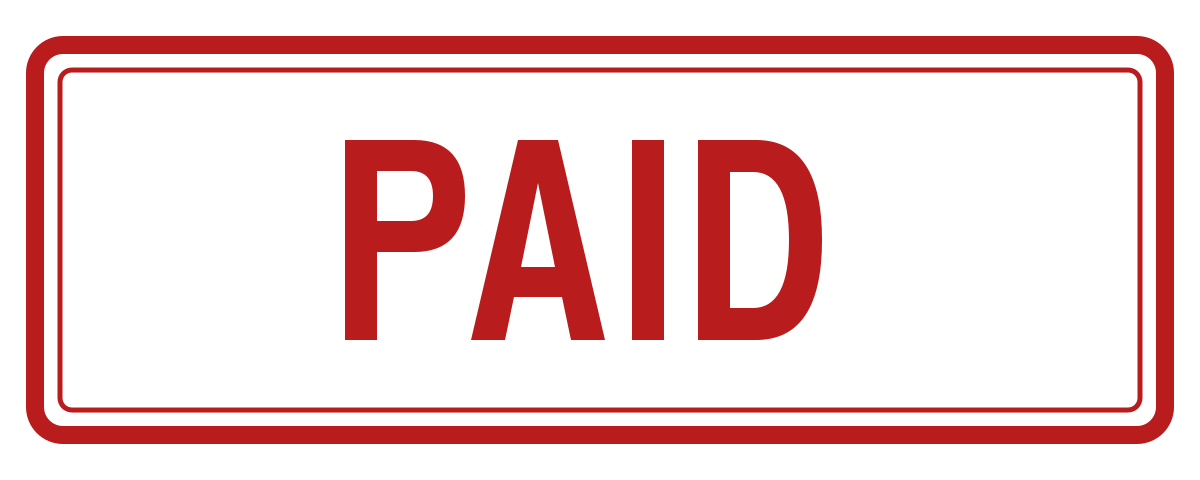



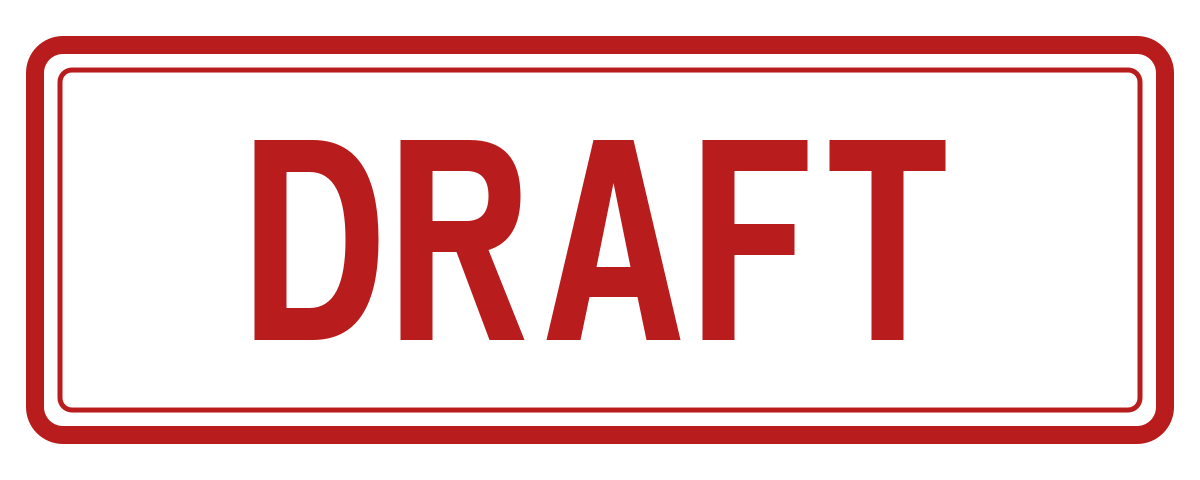
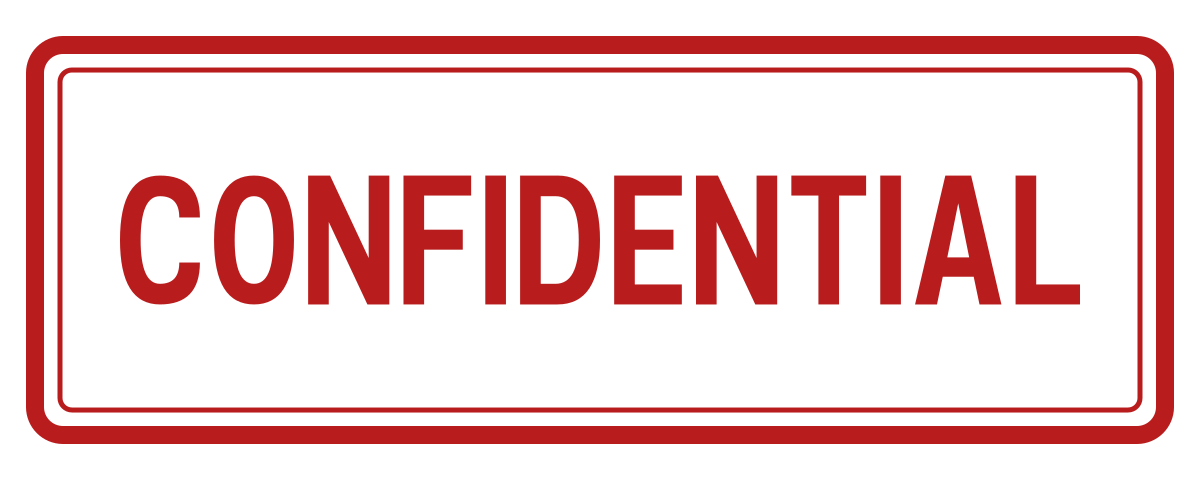


FOR REFERENCE ONLY stamp for PDF
Mark drawings and documents that must not be used for the real work.
Which stamp for which step
Most office documents move through the same steps. Each step has its own stamp, and the stamps are not interchangeable:
- Before the document is final: use DRAFT while a document is under review, and remove it from the final version.
- When a document arrives: use RECEIVED to record arrival. It does not mean that you agree with the content.
- When a person signs off: use APPROVED after the person with authority has checked the document.
- When money is cleared: use PAID for one payment, or PAID IN FULL when the last part payment clears the balance.
- When you share a duplicate: use COPY so the duplicate is not paid twice or treated as the original.
- When the reader must not rely on it: use FOR REFERENCE ONLY on superseded or uncontrolled versions.
- When the content is private: use CONFIDENTIAL to tell the reader not to pass it on.
How to use a stamp from the library
- Open the page for the stamp and download the PNG.
- Open the Stamp & Sign tool and choose your PDF.
- Select Use your own image on this device and pick the PNG. The red, blue, and black PAID stamps are built into the editor, so you can skip the download for those.
- Tap the page to place the stamp. Drag it, and resize it with the corner handle or the Stamp width slider.
- Choose Download stamped PDF.
One stamp or every page
A stamp marks one spot on one page. That is correct for an invoice total, a signature block, or a title block. For a mark across every page of a long document, such as DRAFT or CONFIDENTIAL, use the watermark tool. See How to stamp all pages of a PDF for the two methods.
What a stamp does not do
Each stamp is a visual label. It does not prove payment, identify the person who placed it, or protect the file. Keep the unstamped original, and keep your normal records for approvals and payments.
Frequently asked questions
▸Are the PDF stamps free to use?
Yes. StampAPDF created these templates. You may download, modify, and use them for personal or business documents without attribution. No signup or email is needed.
▸What format are the stamps?
Each stamp is a PNG of 1,200 × 480 pixels with a transparent background. Each wording comes in red, blue, and black.
▸How do I add a stamp from the library to a PDF?
Download the PNG, open Stamp & Sign, and choose your PDF. Select Use your own image on this device and pick the PNG. Tap the page to place the stamp, drag and resize it, then choose Download stamped PDF. The PAID stamps are also built into the editor.
▸Is my PDF uploaded when I use a stamp?
No. The PDF is opened, stamped, and exported in your browser. An image you choose with Use your own image on this device also stays on your device. Only an image you add to the optional saved library is uploaded.
▸Can I change the wording or add a date?
The editor places images only and has no text or date field. Open the PNG in an image editor, add the date or a reference, and save a new PNG before you place it.
▸Can I use the stamps in other applications?
Yes. They are ordinary PNG files, so any application that can place an image on a document can use them.